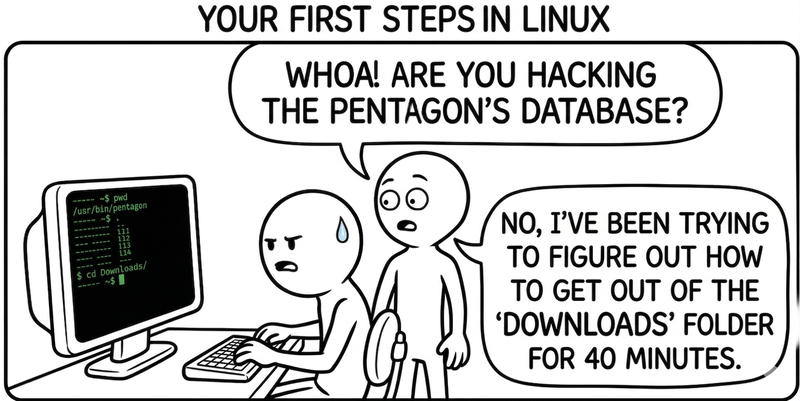
Your first steps in Linux (when you come from Windows and don't want to run away screaming)
Posted on March 26, 2026 • 9 minutes • 1836 words
Table of contents
- Where you are and how to move around: the file system
- Creating, moving, and deleting files: the everyday basics
- Viewing processes (and killing them gracefully)
- Installing software:
aptis your new best friend - Users,
sudo, and that feeling of “I’m the admin now” - Translating your brain from Windows to Linux (without losing your sense of humor)
- Quick glossary
- Sources and references
Your first encounter with Linux, coming from Windows, usually goes something like this:
black screen, white text, a blinking cursor, and your brain screaming “where do I right-click?”.
You’ve been told “the terminal is powerful,” but all you see is a place where you don’t even know which folder you’re in.
The good news is that, underneath all the mystique, Linux (specifically Ubuntu) isn’t that different from what you already know. There’s a file system with folders, processes you can view and kill, a “Control Panel” disguised as commands, and a kind of “App Store” for installing things (only here they’re called repositories and they use apt).
Here’s a hands-on walkthrough designed for someone coming from Windows who just sat down in front of a freshly installed Ubuntu (or WSL with Ubuntu inside).
Where you are and how to move around: the file system
First things first: get your bearings. In Windows you think in drive letters: C:\, D:\, etc. In Linux there’s one single tree rooted at / (the “root”), and everything else hangs off of it – think of it as “My Computer” but without the icons.
The essentials to keep you from getting lost:
pwd(print working directory): tells you which folder you’re in. If you run it right after opening the terminal, you’ll see something like/home/yourusername.ls: lists what’s in the current folder.ls -lgives more details (permissions, size, dates);ls -aalso shows hidden files (the ones starting with.).cdis your newcdfrom cmd, but with/instead of\.cd /takes you to the system root.cd /home/yourusernametakes you to your user folder.cd ~is a shortcut to your home (in Windows that would beC:\Users\YourUsername).cd ..goes up one level, just like in Windows.
The typical Linux directory structure (very simplified) looks like this:
/- The root. Everything hangs off here./home/yourusername- Your user folder: documents, projects, personal configs./etc- System and service configuration (think “global config files”)./var- Variable data: logs, queues, temporary files./bin,/usr/bin- Executables (system commands and programs).
You don’t need to memorize the whole tree at once; just knowing that you’ll spend most of your time in /home/yourusername, and that the serious system stuff is in /etc, /var, etc., is plenty to start.
A good way to stop fearing the terminal is to just poke around:
pwd
ls
cd /
ls
cd /home
ls
cd ~
You’ll see the prompt change with each directory, and little by little you’ll stop feeling like you’re jumping around blindly.
Creating, moving, and deleting files: the everyday basics
You’ll find a direct command for everything you already know how to do.
mkdir namecreates a directory (like “New Folder”).touch file.txtcreates an empty file (or updates its timestamp if it already exists).cp source destinationcopies files.mv source destinationmoves or renames.rm filedeletes files;rm -r folderdeletes folders (heads up: there’s no Recycle Bin by default).
Here’s a classic one:
mkdir projects
cd projects
mkdir demo
cd demo
touch README.md
ls
Instead of opening File Explorer, dragging, dropping… you type three or four commands and you’ve got a basic project skeleton ready.
If you’re coming from Windows, it’ll take a little while before your first instinct stops being “right-click → New → Folder.” But the terminal has one big advantage: it’s automatable. Whatever you do by hand today, you can wrap in a script and repeat in 0.1 seconds, on any machine.
Viewing processes (and killing them gracefully)
In Windows you have Task Manager. In Linux, its counterparts are commands like ps, top, htop, and kill
.
To see what’s running:
ps auxlists all processes with details. You can filter withgrep:
ps aux | grep firefox
to locate the PIDs of any Firefox-related processes.
topgives you a dynamic view similar to “Task Manager in text mode”: CPU, RAM, sorted processes, etc. Pressqto quit.- If you install
htop(sudo apt install htop), you get a “pretty” version oftop, with colors, bars, and cursor navigation.
To kill a process, the pattern is straightforward, for example:
- Find the PID:
ps aux | grep name
- Use
kill PID:
kill 12345
- If the process refuses to die,
kill -9 PIDsends a more aggressive signal (SIGKILL), similar to “End Task” in Windows, but without giving the program any chance to clean up.
There’s also killall name, which kills all processes with that name – handy when you’ve got five instances of the same misbehaving daemon.
The point isn’t to become a sysadmin overnight, but to know that when something freezes, you’re not helpless at the terminal: you can find, inspect, and terminate processes just as well – or better – than in Task Manager.
Installing software: apt is your new best friend
In Windows, you install things by downloading .exe files or using tools like Winget or Chocolatey. In Ubuntu, the standard mechanism is apt (Advanced Package Tool), which manages packages from official repositories.
Three commands you’ll use all the time:
sudo apt update- Updates the package index (the list of what’s available and in which version).sudo apt upgrade- Upgrades installed packages to their latest versions.sudo apt install name- Installs a program.
Examples:
sudo apt update
sudo apt upgrade

sudo apt install git
sudo apt install htop
sudo apt install curl
To search for packages:
apt search name
And to uninstall:
sudo apt remove package
sudo apt purge package   # same thing, but also removes config files
Ubuntu’s beginner guides
are pretty insistent about this: no need to Google it, download some random .deb, and double-click; if something’s in the official repos, using apt is the cleanest, safest, and easiest way to keep it updated later.
For the rest of the toolchain – Node, Python, Docker – each one comes with its own package manager. But for the system itself, apt is your one-stop shop: “Windows Update + winget + common sense,” all rolled into one.
Users, sudo, and that feeling of “I’m the admin now”
In Windows you have admin accounts, UAC, permissions… In Ubuntu, your user is typically set up with the ability to use sudo: meaning you can run commands “as root” (administrator) by prepending sudo and entering your password.
Classic example:
sudo apt install nginx
Ubuntu will ask for your password, run the command as root, and then drop back to running as your regular user. Think of it as “Run as administrator,” but at the command line.
There are two things worth keeping in mind:
- You don’t need to be root all the time: you work as a normal user, and only when you need to touch sensitive things (installing, changing global config, managing services) do you use
sudo. That dramatically reduces the blast radius of any mistakes. sudohas a short memory: after a little while, it asks for your password again. It’s a tradeoff between security and not going insane.
If you’re in a strictly personal environment (your laptop, your WSL) and you want to make sudo less of a hassle, you can tweak the config to ask for the password less often… but that’s next-level stuff. For now, treating “if I need to type sudo, this does something important” as a mental warning is a solid habit.
Translating your brain from Windows to Linux (without losing your sense of humor)
To wrap up, it really pays to build a mental cheat sheet of equivalents:
- File Explorer ->
ls,cd,pwd(and if you want a GUI, Nautilus/Dolphin/whatever your desktop environment ships with). - Task Manager ->
ps,top,htop,kill. - Installing from an exe ->
apt install package. - Control Panel / Settings ->
/etc+ specific tools (for example,ufwfor the firewall,systemctlfor services… more on that later).
The goal isn’t to memorize 50 commands all at once – it’s to build confidence with a handful and use them every day. Ubuntu beginner tutorials
typically start with exactly this set: ls, cd, pwd, mkdir, cp, mv, rm, ps, top, kill, apt.
If you’re coming from Windows, it’s totally normal to reach for a GUI first. But the sooner you get the hang of the terminal, the sooner you’ll understand why so many people swear that “once you get used to it, it’s faster.” It’s not just bragging: typing three commands and pasting a code snippet tends to scale a lot better than twenty clicks in a row.
And here’s a parting thought: 99% of the people you see online bragging about “living in the terminal” have also run rm where they shouldn’t have. The difference is whether you do that on a production server or on your first local Ubuntu machine. Right now, you’re firmly in the second category. Enjoy it.
Quick glossary
Because not everyone knows what a PID is, and some people are too embarrassed to Google it.
- PID (Process ID): the unique numeric identifier the OS assigns to every running process. Think of it as a process’s social security number – it’s how you reference it, and how you
killit if needed. - SIGKILL: the nuclear kill signal the kernel sends to a process when you use
kill -9. Unlike other signals, the process can’t ignore it or clean up after itself – it’s the “End Task” button with no questions asked. - Root: the system superuser, with unrestricted permissions over everything. Think of it as the Windows admin account, but without the safety net – running
rm -rf /as root wipes the entire system without so much as a confirmation prompt. - Repository (in
aptcontext): a centralized server that stores verified software packages and their dependencies. When you runapt install, Ubuntu fetches the package from these repositories instead of downloading it from some random website. - Daemon: a background process that runs without user interaction, handling requests from the system or other programs. A web server, the network manager, or the print service are classic examples.
Sources and references
Because your spider-sense might be telling you to double-check those commands before typing them in a real terminal.
- Command Line for Beginners - Ubuntu Official. Official Canonical tutorial for getting started with the terminal.
- Essential Ubuntu Commands - It’s FOSS. A curated list of essential Ubuntu commands.
- A Complete Guide to Understanding Linux File System Tree - Cherry Servers. A visual guide to the Linux directory tree.
- Linux Commands - DigitalOcean. General Linux command reference with examples.
- 25 Basic Ubuntu Commands - GeeksforGeeks. The 25 most common commands in Ubuntu.
- Linux File Hierarchy Structure - GeeksforGeeks. Explanation of the Linux directory hierarchy.
- Managing Processes with ps, top, htop and kill - Linux Bash. Step-by-step process management guide.
- How to Use ps, kill and nice to Manage Processes - DigitalOcean. Tutorial on process management with signals.
- Ultimate Linux/Ubuntu Commands Cheat Sheet - DefenceDev. A comprehensive command cheat sheet.
- Linux Filesystem Hierarchy - Linux Journal. A classic guide to the Linux filesystem layout.