Terraform for Humans: From Reckless Click-Ops to IaC (Without Losing Your Mind Along the Way)
Posted on May 21, 2026 • 23 minutes • 4706 words
Table of contents
- What is IaC (the version for people who’ve suffered through web consoles)
- How Terraform works
- Prerequisites: provider CLIs (because the magic needs credentials)
- Installing Terraform (Linux, macOS, Windows)
- The state file: Terraform’s secret (and fragile) diary
- Typical files: don’t let your project become an 800-line
main.tf - Key commands: what each one actually does
- Example repository
- Example 1 - Small instance on AWS (and how to play with it)
- Example 2 - Small VM on Azure
- Example 3 - Small VM on GCP
- Variables,
.tfvars, and multiple environments - Modules: stop copy-pasting infrastructure
- Best practices for not ending up worse off than before IaC
- Before you close the laptop
- Glossary
- Sources and references
It’s just a tiny change, I’ll do it by hand real quick.
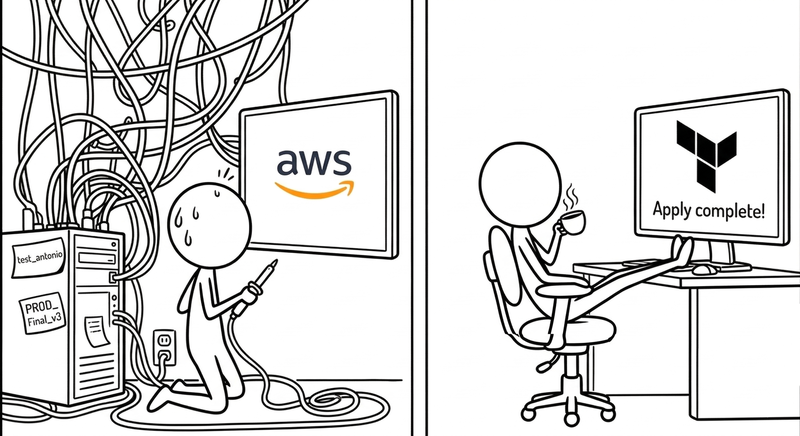
And there you are, having spent the entire week putting out fires, staring at the AWS, Azure, or GCP console at 6:30 on a Friday, opening tabs like you’re getting paid per click.
One of those Fridays, a team decided to “duplicate” production by hand for a campaign. Two people, each in their own console, spinning up machines, tweaking security groups, expanding disks “just a tiny bit, no big deal”… Nobody wrote anything down because “we’ll document it later.”
The following Monday, nobody knew how many instances there were, which one was the original, what ports had been opened “just to test,” or what region any of it lived in. The cloud bill arrived a month later, and the security audit is still crying.
Infrastructure as Code — and Terraform in particular — exists so that none of that depends on the memory of whoever was half-asleep on a Friday afternoon, but on code that’s reviewable, repeatable, and automatable. Let’s dig in with theory, practice, and real examples on AWS, Azure, and GCP.
What is IaC (the version for people who’ve suffered through web consoles)
Infrastructure as Code (IaC) means describing your infrastructure (machines, networks, disks, firewall rules, load balancers…) in text files you can push to Git, review in pull requests, and use to recreate environments without too much suffering.
You stop clicking around in web consoles and start describing how you want the system to look — then let a tool do the dirty work.
What do you get out of that? When someone breaks something, you review the commit instead of trawling through a cryptic activity log praying you find something useful. You can spin up dev, staging, and prod consistently, instead of maintaining three Frankensteins that only share a name.
And you can tear down and recreate an entire environment without having to ask anyone “hey, did you touch something here a few months ago?”
Terraform is one of the most popular engines for all of this: it talks to the APIs of AWS, Azure, and GCP, and turns your code into real resources.
How Terraform works
Terraform is simpler than it looks; we’re the ones who pile on the complexity.
At a high level, it reads your .tf files (what you want to exist), compares them against what it thinks already exists thanks to its state file, calculates the diff, and calls the provider’s APIs to make your wishes come true. Like a genie in a bottle, but with more HCL and less smoke.
Everything revolves around three pieces.
The configuration (your *.tf files) is the blueprint of how the infrastructure should look.
The state (terraform.tfstate) is the snapshot of what Terraform has created and how it tracks it. Think of it as the long-term memory of someone who — unlike your team on a Friday afternoon — actually writes things down.
And the plan (terraform plan) is the moment when Terraform shows you the before/after of the carnage before actually doing it, so you can run away in time.
The practical upshot is that if you poke at the infrastructure outside of Terraform “because it’s just a tiny change,” you’re creating a divergence between reality and state.
It’s like telling someone a different version of events when they have a better memory than you. It’s not going to end well.
Prerequisites: provider CLIs (because the magic needs credentials)
Before you start launching things with Terraform, you need to be able to talk to each cloud. And to talk to the clouds (at least AWS, Azure, and GCP), the most practical move is to have their CLIs installed and configured.
Technically it’s not always required, but trying to work without them is like trying to cut onions with a spoon: possible, but painful.
AWS CLI
Install AWS CLI v2 by following the official guide:
Once installed, configure your credentials and default region:
aws configure
# AWS Access Key ID, Secret Access Key, region (e.g. eu-west-1), output (json)
Azure CLI
Install Azure CLI from the official docs (Windows, Linux, macOS):
Then:
az login
# A browser window opens, you log in, and you're done
Google Cloud CLI (gcloud)
For GCP you’ll use gcloud, Google Cloud’s official CLI:
Typical setup on Debian/Ubuntu:
sudo apt-get update && sudo apt-get install google-cloud-cli
On Windows you can use the graphical installer or the SDK zip, following the same guide. On macOS I’d recommend Homebrew .
After installing, initialize and authenticate:
gcloud init
# Choose your project, default region/zone, and authentication
Terraform can leverage these configurations (or specific service accounts) to access each cloud.
Installing Terraform (Linux, macOS, Windows)
Now for the star of the show.
Installing Terraform is, surprisingly, one of the easiest things in this entire article. Almost suspiciously easy.
Linux
From the official binary:
curl -LO https://releases.hashicorp.com/terraform/1.9.8/terraform_1.9.8_linux_amd64.zip
unzip terraform_1.9.8_linux_amd64.zip
sudo mv terraform /usr/local/bin/
terraform version
macOS
With Homebrew:
brew tap hashicorp/tap
brew install hashicorp/tap/terraform
terraform version
Or download the zip from HashiCorp’s page, unzip it, and move the binary to a directory in your PATH.
Windows
With Chocolatey:
choco install terraform -y
terraform version
You can also use the official installer/zip and add the path to your PATH.
The state file: Terraform’s secret (and fragile) diary
Terraform stores detailed information about everything it has created in terraform.tfstate: real IDs, attributes, dependencies…
Think of the state file as that sticky note where you write all your passwords and keep it under your keyboard — except worse, because if you lose it, Terraform gets full amnesia and you’ve got a ruined weekend on your hands.
Local state
By default, state lives in a local file (./terraform.tfstate) in your working directory. For solo demos and labs, it’s convenient and fast. For anything involving a team, it’s a ticking time bomb: conflicts, overwrites, and that classic “who the heck has my state file?”
Two survival rules that are non-negotiable: don’t commit it to Git (seriously, don’t, never, under any circumstances) and treat it like it contains secrets — because sometimes it does.
Your future self will thank you.
Remote state: AWS, Azure, and GCP
For anything even remotely serious (meaning anything where there’s more than one person involved, or where someone will be upset if it breaks), you want remote state with locking.
The good news is that all three major clouds support it, and setting it up doesn’t require a PhD.
Remote backend on AWS - S3 + DynamoDB
First you need to create the S3 bucket and DynamoDB table that Terraform will use. This only needs to be done once:
# Create the S3 bucket for state
aws s3api create-bucket \
  --bucket my-terraform-state-bucket \
  --region eu-west-1 \
  --create-bucket-configuration LocationConstraint=eu-west-1

# Enable versioning (to recover previous states if something goes wrong)
aws s3api put-bucket-versioning \
  --bucket my-terraform-state-bucket \
  --versioning-configuration Status=Enabled

# Create the DynamoDB table for locking
aws dynamodb create-table \
  --table-name terraform-locks \
  --attribute-definitions AttributeName=LockID,AttributeType=S \
  --key-schema AttributeName=LockID,KeyType=HASH \
  --billing-mode PAY_PER_REQUEST \
  --region eu-west-1
Once those are created, configure the backend in your .tf file:
terraform {
  backend "s3" {
    bucket         = "my-terraform-state-bucket"
    key            = "demo/terraform.tfstate"
    region         = "eu-west-1"
    dynamodb_table = "terraform-locks"
    encrypt        = true
  }
}
The idea is simple: S3 stores the state and DynamoDB handles locking, so two people can’t run apply at the same time and blow everything up.
AWS recently enabled native S3 locking so you no longer have to depend on DynamoDB — but I’ll leave that one for you to explore.
Remote backend on Azure - Azure Storage (Blob)
Before configuring the backend, you need to create the resource group, storage account, and blob container:
# Create the resource group
az group create \
  --name rg-terraform-state \
  --location westeurope

# Create the storage account
az storage account create \
  --name stterraformstate123 \
  --resource-group rg-terraform-state \
  --location westeurope \
  --sku Standard_LRS \
  --encryption-services blob

# Create the blob container for state
az storage container create \
  --name tfstate \
  --account-name stterraformstate123
With that done, configure the backend in your .tf file:
terraform {
  backend "azurerm" {
    resource_group_name  = "rg-terraform-state"
    storage_account_name = "stterraformstate123"
    container_name       = "tfstate"
    key                  = "demo/terraform.tfstate"
  }
}
State is stored as a blob in Azure Storage, with versioning and access controls included. Microsoft doesn’t hold back on naming bureaucracy, but at least it works.
Remote backend on GCP - Cloud Storage
Create a Cloud Storage bucket for state:
gcloud storage buckets create gs://my-terraform-state-bucket \
  --location=europe-west1
In your Terraform project (for example, the GCP one), define:
terraform {
  backend "gcs" {
    bucket = "my-terraform-state-bucket"
    prefix = "gcp-vm-demo/state"
  }

  required_version = ">= 1.5.0"

  required_providers {
    google = {
      source  = "hashicorp/google"
      version = "~> 5.0"
    }
  }
}
The first time you run terraform init, it will ask if you want to migrate local state to remote. From that point on, the tfstate lives in GCS with the benefits of versioning and IAM.
Bottom line: local for solo tinkering; remote for anything you wouldn’t want to explain in a postmortem.
Typical files: don’t let your project become an 800-line main.tf
Organizing your Terraform code into multiple files keeps the project from turning into an endless scroll where nobody can find anything and everyone touches everything.
The minimal structure that will preserve your sanity looks roughly like this:
- A
providers.tfto declare which clouds you’re talking to. - A
variables.tffor input variables. - A
main.tfwith the main resources. - An
outputs.tfwith useful outputs. - Optionally,
*.tfvarsfiles with concrete values for each environment.
When the project grows, you can split by domain (network, compute, database…), but this already gives you a solid baseline with a lot less chaos.
Key commands: what each one actually does
Terraform has few commands, but you’ll use them so often you’ll start dreaming about them.
You start with terraform init, which initializes the directory, downloads providers, and configures the backend. It’s the “plug-and-pray” of every new project.
Then there’s terraform fmt, which reformats your files so they don’t look like they were written by someone in a hurry (which, let’s be honest, was probably you).
terraform validate checks that the syntax doesn’t have any glaring issues before you go any further.
The moment of truth arrives with terraform plan, which calculates what Terraform is going to do without touching anything. It’s the “look before you leap” step.
If what the plan shows doesn’t trigger an anxiety attack, you run terraform apply to actually make it happen.
And then there’s terraform destroy, which wipes out everything Terraform manages. Use it with the same care you’d give a rm -rf: deep respect and, ideally, with filters or separate projects.
The workflow sequence that (usually) doesn’t end in disaster:
terraform fmt
terraform validate
terraform plan -out=plan.out
terraform apply plan.out
Example repository
All examples in this tutorial are available in a ready-to-use repository:
https://github.com/granite-stack/terraform-first-steps
Clone it before moving on. That way you skip the tedious typing and can focus on understanding what each piece does:
git clone https://github.com/granite-stack/terraform-first-steps.git
cd terraform-first-steps
Each example below corresponds to a directory inside the repository.
Example 1 - Small instance on AWS (and how to play with it)
You’ll need: AWS CLI installed and configured with
aws configure, and credentials with EC2 permissions.
File structure
The aws-ec2-demo/ directory has four files: providers.tf (where and how you connect), variables.tf (what you can parameterize), main.tf (the resources themselves), and outputs.tf (what you want to see at the end). Nothing revolutionary, but it works.
providers.tf:
terraform {
  required_version = ">= 1.5.0"

  backend "s3" {
    bucket         = "my-terraform-state-bucket"
    key            = "aws-ec2-demo/terraform.tfstate"
    region         = "eu-west-1"
    dynamodb_table = "terraform-locks"
    encrypt        = true
  }

  required_providers {
    aws = {
      source  = "hashicorp/aws"
      version = "~> 5.0"
    }
  }
}

provider "aws" {
  region = var.aws_region
}
variables.tf:
variable "aws_region" {
  type        = string
  description = "AWS region"
  default     = "eu-west-1"
}

variable "instance_name" {
  type        = string
  description = "EC2 instance name"
  default     = "demo-terraform-ec2"
}

variable "instance_type" {
  type        = string
  description = "EC2 instance type"
  default     = "t3.micro"
}

variable "root_volume_size" {
  type        = number
  description = "Root disk size in GB"
  default     = 8
}
main.tf:
data "aws_ami" "ubuntu" {
  most_recent = true

  filter {
    name   = "name"
    values = ["ubuntu/images/hvm-ssd/ubuntu-jammy-22.04-amd64-server-*"]
  }

  filter {
    name   = "virtualization-type"
    values = ["hvm"]
  }

  owners = ["099720109477"] # Canonical
}

resource "aws_instance" "demo" {
  ami           = data.aws_ami.ubuntu.id
  instance_type = var.instance_type

  tags = {
    Name = var.instance_name
  }

  root_block_device {
    volume_size = var.root_volume_size
    volume_type = "gp3"
  }
}
outputs.tf:
output "instance_id" {
  description = "EC2 instance ID"
  value       = aws_instance.demo.id
}

output "public_ip" {
  description = "Instance public IP"
  value       = aws_instance.demo.public_ip
}
Creating the instance
Now for the satisfying part. Jump into the directory and run the sequence:
cd aws-ec2-demo
terraform init
terraform plan
terraform apply
Terraform will show you its battle plan, ask for confirmation (type yes with conviction or with dread, depending on the day), and at the end you’ll see the public IP of your freshly minted instance.
Changing type, disk, and name
This is where Terraform really starts to shine: change a value in the code and it handles the rest.
Well… mostly.
Change instance type. Go to variables.tf and change the type:
default = "t3.small"
Then:
terraform plan
terraform apply
You’ll see that Terraform needs to replace the instance (destroy + create), because AWS doesn’t let you change the type on the fly without stopping it first. Don’t panic, it’s normal.
Expand the root disk. Change root_volume_size from 8 to 16:
terraform plan
This will typically be an in-place change on the volume, so no drama.
Change the name (the Name tag). Change instance_name:
default = "demo-terraform-ec2-renamed"
The plan will show only a tag change, with no instance recreation.
One of the more peaceful changes you can make — but don’t get too comfortable.
Example 2 - Small VM on Azure
You’ll need: Azure CLI installed and
az loginrun, with an active subscription.
File structure
The azure-vm-demo/ directory follows the same four-file structure. Azure needs more resources to spin up a VM (virtual network, subnet, public IP, network interface…), so the main.tf will be longer — but the idea is the same.
providers.tf:
terraform {
  required_version = ">= 1.5.0"

  backend "azurerm" {
    resource_group_name  = "rg-terraform-state"
    storage_account_name = "stterraformstate123"
    container_name       = "tfstate"
    key                  = "azure-vm-demo/terraform.tfstate"
  }

  required_providers {
    azurerm = {
      source  = "hashicorp/azurerm"
      version = "~> 4.0"
    }
  }
}

provider "azurerm" {
  features {}
}
variables.tf:
variable "location" {
  type        = string
  description = "Azure region"
  default     = "westeurope"
}

variable "vm_name" {
  type        = string
  description = "Virtual machine name"
  default     = "demo-terraform-vm"
}

variable "vm_size" {
  type        = string
  description = "VM size"
  default     = "Standard_B1s"
}

variable "os_disk_size_gb" {
  type        = number
  description = "OS disk size in GB"
  default     = 30
}
main.tf:
resource "azurerm_resource_group" "rg" {
  name     = "rg-terraform-demo"
  location = var.location
}

resource "azurerm_virtual_network" "vnet" {
  name                = "vnet-demo"
  address_space       = ["10.0.0.0/16"]
  location            = azurerm_resource_group.rg.location
  resource_group_name = azurerm_resource_group.rg.name
}

resource "azurerm_subnet" "subnet" {
  name                 = "subnet-demo"
  resource_group_name  = azurerm_resource_group.rg.name
  virtual_network_name = azurerm_virtual_network.vnet.name
  address_prefixes     = ["10.0.1.0/24"]
}

resource "azurerm_public_ip" "public_ip" {
  name                = "pip-demo"
  location            = azurerm_resource_group.rg.location
  resource_group_name = azurerm_resource_group.rg.name
  allocation_method   = "Static"
  sku                 = "Standard"
}

resource "azurerm_network_interface" "nic" {
  name                = "nic-demo"
  location            = azurerm_resource_group.rg.location
  resource_group_name = azurerm_resource_group.rg.name

  ip_configuration {
    name                          = "ipconfig1"
    subnet_id                     = azurerm_subnet.subnet.id
    private_ip_address_allocation = "Dynamic"
    public_ip_address_id          = azurerm_public_ip.public_ip.id
  }
}

resource "azurerm_linux_virtual_machine" "vm" {
  name                = var.vm_name
  resource_group_name = azurerm_resource_group.rg.name
  location            = azurerm_resource_group.rg.location
  size                = var.vm_size
  admin_username      = "azureuser"

  network_interface_ids = [
    azurerm_network_interface.nic.id
  ]

  admin_ssh_key {
    username   = "azureuser"
    public_key = file("~/.ssh/id_rsa.pub")
  }

  os_disk {
    name                 = "${var.vm_name}-osdisk"
    caching              = "ReadWrite"
    storage_account_type = "Standard_LRS"
    disk_size_gb         = var.os_disk_size_gb
  }

  source_image_reference {
    publisher = "Canonical"
    offer     = "0001-com-ubuntu-server-jammy"
    sku       = "22_04-lts-gen2"
    version   = "latest"
  }
}
outputs.tf:
output "vm_id" {
  description = "VM ID"
  value       = azurerm_linux_virtual_machine.vm.id
}

output "public_ip" {
  description = "VM public IP"
  value       = azurerm_public_ip.public_ip.ip_address
}
Creating the VM
Same ritual:
cd azure-vm-demo
terraform init
terraform plan
terraform apply
Azure is more verbose (some might say high-maintenance) than AWS. A simple “I want a VM” means creating a resource group, a virtual network, a subnet, a public IP, and a network interface.
The good news is that Terraform handles all of that without you opening seven tabs in the portal.
Changing size, disk, and name
Same game as AWS, just with Azure naming conventions.
If you change vm_size to "Standard_B2s", run terraform plan and then apply; Azure will stop the VM, resize it, and start it back up.
If you expand the disk with os_disk_size_gb = 64, check with plan whether it’s an in-place change or a full recreation.
And if you change vm_name, brace yourself: Azure often needs to destroy and recreate the entire VM, because the name is part of the resource’s identity.
Terraform will warn you in the plan, so no surprises.
Example 3 - Small VM on GCP
You’ll need: Google Cloud CLI installed,
gcloud initrun, a project with billing enabled, and the right permissions. Yes, with GCP there’s always one more step.
File structure
The gcp-vm-demo/ directory follows the same four-file pattern.
GCP has its own quirks (project, zone, networks with auto-created subnets…), but the philosophy is the same.
providers.tf:
terraform {
  required_version = ">= 1.5.0"

  backend "gcs" {
    bucket = "my-terraform-state-bucket"
    prefix = "gcp-vm-demo/state"
  }

  required_providers {
    google = {
      source  = "hashicorp/google"
      version = "~> 5.0"
    }
  }
}

provider "google" {
  project = var.project_id
  region  = var.region
  zone    = var.zone
}
variables.tf:
variable "project_id" {
  type        = string
  description = "GCP project ID"
}

variable "region" {
  type        = string
  description = "GCP region"
  default     = "europe-west1"
}

variable "zone" {
  type        = string
  description = "GCP zone"
  default     = "europe-west1-b"
}

variable "instance_name" {
  type        = string
  description = "Compute Engine instance name"
  default     = "demo-terraform-gce"
}

variable "machine_type" {
  type        = string
  description = "Machine type"
  default     = "e2-micro"
}

variable "boot_disk_size_gb" {
  type        = number
  description = "Boot disk size in GB"
  default     = 10
}
main.tf:
resource "google_compute_network" "vpc" {
  name                    = "vpc-demo-terraform"
  auto_create_subnetworks = true
}

resource "google_compute_firewall" "allow_ssh" {
  name    = "fw-allow-ssh"
  network = google_compute_network.vpc.name

  allow {
    protocol = "tcp"
    ports    = ["22"]
  }

  source_ranges = ["0.0.0.0/0"]
}

resource "google_compute_instance" "vm" {
  name         = var.instance_name
  machine_type = var.machine_type
  zone         = var.zone

  boot_disk {
    initialize_params {
      image = "projects/ubuntu-os-cloud/global/images/family/ubuntu-2204-lts"
      size  = var.boot_disk_size_gb
    }
  }

  network_interface {
    network = google_compute_network.vpc.name

    access_config {
      # External IP
    }
  }

  metadata = {
    ssh-keys = "ubuntu:${file("~/.ssh/id_rsa.pub")}"
  }

  tags = ["ssh"]
}
outputs.tf:
output "instance_id" {
  description = "GCE instance ID"
  value       = google_compute_instance.vm.id
}

output "public_ip" {
  description = "Instance public IP"
  value       = google_compute_instance.vm.network_interface[0].access_config[0].nat_ip
}
Creating the VM
On GCP you need to pass project_id as a variable (it has no default since everyone has their own):
cd gcp-vm-demo

gcloud init  # if you haven't done it yet

terraform init
terraform plan -var="project_id=your-project-id"
terraform apply -var="project_id=your-project-id"
When it finishes you’ll see the public IP and can verify in the GCP console that the VM exists.
If you get through this without errors, give yourself a medal (for bravery or for wounds in battle - honestly, both seem appropriate).
Changing type, disk, and name
Same mechanics as AWS and Azure.
Change machine_type to "e2-small" and run terraform plan: depending on the configuration, it might involve a stop-and-restart or a full recreation; the plan will tell you straight up.
Expanding the boot disk with boot_disk_size_gb = 20 is usually calmer: plan then apply.
And changing instance_name is, as with the other providers, synonymous with recreation. GCP doesn’t let you rename instances, so Terraform destroys and creates a new one.
At least it warns you first.
Variables, .tfvars, and multiple environments
At some point you’ll want dev, staging, and prod without maintaining three copies of the same code that only differ in machine size and name.
That’s what variables and .tfvars files are for: the same configuration, different values per environment.
For example, with AWS, the repo includes two example files you’ll want to rename:
dev.tfvars:
instance_type    = "t3.micro"
root_volume_size = 8
instance_name    = "demo-ec2-dev"
prod.tfvars:
instance_type    = "t3.small"
root_volume_size = 30
instance_name    = "demo-ec2-prod"
Run:
terraform plan -var-file="dev.tfvars"
terraform apply -var-file="dev.tfvars"
The same idea works in GCP (different project_id, a cheaper zone for development…) and Azure (different VM sizes).
Write once, parameterize, and avoid the copy-paste sessions that always end in creative disasters.
Modules: stop copy-pasting infrastructure
When you start copying entire blocks to create “another VM just like this one but slightly different,” it’s time for modules.
We’ve all been there: you copy, change two values, and tell yourself “I’ll clean this up later.”
Spoiler: you never do.
Before you know it, you have four copies that have about as much in common as chalk and cheese.
Modules encapsulate a pattern (say, “a VM with its network and firewall”), parameterize it, and let you reuse it without losing your mind.
The typical structure looks like this:
modules/
  aws_vm/
    main.tf
    variables.tf
    outputs.tf
main.tf
variables.tf
modules/aws_vm/variables.tf:
variable "instance_name"    { type = string }
variable "instance_type"    { type = string }
variable "root_volume_size" { type = number }
variable "aws_region"       { type = string }
modules/aws_vm/main.tf:
provider "aws" {
  region = var.aws_region
}

data "aws_ami" "ubuntu" {
  most_recent = true

  filter {
    name   = "name"
    values = ["ubuntu/images/hvm-ssd/ubuntu-jammy-22.04-amd64-server-*"]
  }

  filter {
    name   = "virtualization-type"
    values = ["hvm"]
  }

  owners = ["099720109477"]
}

resource "aws_instance" "vm" {
  ami           = data.aws_ami.ubuntu.id
  instance_type = var.instance_type

  tags = {
    Name = var.instance_name
  }

  root_block_device {
    volume_size = var.root_volume_size
    volume_type = "gp3"
  }
}
modules/aws_vm/outputs.tf:
output "instance_id" {
  value = aws_instance.vm.id
}

output "public_ip" {
  value = aws_instance.vm.public_ip
}
And in your root main.tf:
module "web_dev" {
  source           = "./modules/aws_vm"
  aws_region       = "eu-west-1"
  instance_name    = "web-dev"
  instance_type    = "t3.micro"
  root_volume_size = 8
}

module "web_prod" {
  source           = "./modules/aws_vm"
  aws_region       = "eu-west-1"
  instance_name    = "web-prod"
  instance_type    = "t3.small"
  root_volume_size = 30
}
You can do exactly the same with modules for Azure and GCP.
Encapsulate the “VM + network + firewall” pattern, parameterize what varies, and suddenly spinning up ten environments is ten module blocks instead of ten files nobody dares touch.
Best practices for not ending up worse off than before IaC
After everything we’ve covered, here are a few common-sense tips that will save you a lot of grief.
For anything serious, use remote state with locking (S3 + DynamoDB, Azure Blob, or GCS). Local state is for playing around; in a team it’s asking for trouble.
Ban manual changes to production outside of Terraform, except for documented emergencies. And “documented” doesn’t mean “I mentioned it to someone on Slack.”
Review plan output like it’s a pull request: someone should look at what’s going to be deleted or created before hitting the button — because an unexpected destroy on a resource will ruin anyone’s day.
Don’t put secrets in plain text in your .tf files. No passwords, no tokens, not even “just for testing.” Use sensitive variables, vaults, or whatever your provider offers — but don’t leave them sitting there in plain text waiting to be found in a public repo.
And when you start copy-pasting blocks of infrastructure, stop and use modules: your future self will buy you a beer.
Before you close the laptop
With all of this, you have a solid foundation for moving from “reckless click-ops” to reasonably civilized infrastructure.
Throughout this tutorial you’ve covered the essentials to start working seriously with IaC.
The natural next step is adding infrastructure tests (Terratest, tflint, checkov) and CI/CD pipelines that run plan on every pull request and apply only after code has passed review. Because the apply run by hand at 5:45 PM on a Thursday has a suspiciously high incident rate.
If you’re working in a team, consider adding policies as code: Sentinel if you’re on Terraform Cloud/Enterprise, OPA if you prefer something more open. They’re how you tell Terraform “never open port 22 to the world” without relying on someone to remember it in every review. Which they won’t. Ever.
And if someday your main.tf exceeds 200 lines without being a module, stop. Take a breath. Create a module. Your future self — the one who inherits that file at 11 PM with an active alert firing — will silently thank you.
The good news is that getting this far already puts you ahead of most people.
The bad news is that you’re now the person everyone turns to when something goes wrong with the Terraform state.
But that’s a problem for future you. Present you deserves a coffee.
Glossary
Because not everyone has been through enough production incidents to speak the language.
Backend (Terraform): where Terraform stores the state file. Can be local (on your machine, for solo suffering) or remote (S3, Azure Blob, GCS), where state lives centrally and is accessible to the whole team. Remote backends also enable state locking.
checkov: static analysis tool for Terraform files (and other IaC formats). Catches security misconfigurations before they reach production. The classic “did you just accidentally open port 22 to the world?”
CI/CD (Continuous Integration/Continuous Deployment): automated pipeline that picks up code from a repository, validates it, tests it, and deploys it without manual intervention. In a Terraform context: the system that runs
planwhen a pull request comes in andapplyonly when someone with good judgment gives the green light.click-ops: the art of managing infrastructure by clicking around in the provider’s web console. Works at small scale, but it’s not repeatable, not auditable, and is the direct cause of those Monday morning meetings where nobody knows what’s actually deployed or who touched it.
drift (state divergence): the difference between what Terraform’s state file says and what’s actually in the cloud. Shows up when someone makes “a small manual change, no big deal.” The longer it goes undetected, the more creative the postmortem explanation gets.
HCL (HashiCorp Configuration Language): the language you use to write
.tffiles. Designed to be more readable than JSON and less ambitious than a full programming language. In practice: blocks with braces, parameters inkey = valueformat, and some interpolation to wire up variables.OPA (Open Policy Agent): open-source policy engine with its own language (Rego). Lets you define rules like “no S3 bucket can be public” and evaluate them before Terraform applies anything. The open alternative to Sentinel.
Policy as Code: defining security rules, compliance requirements, and infrastructure conventions as versioned code in Git — rather than a Word document nobody reads that was last updated in 2019. Sentinel and OPA are the two most common engines used with Terraform.
Provider: the plugin Terraform uses to talk to a specific service (AWS, Azure, GCP, Cloudflare, GitHub…). Declared in
providers.tf, downloaded by Terraform duringinit, and after that it knows what resources it can create and how to call the corresponding API.Sentinel: HashiCorp’s policy-as-code language and framework, available in Terraform Cloud and Enterprise. Lets you write rules that are evaluated before
applydoes anything. Like having a pull request reviewer who never gets distracted, never feels rushed, and remembers absolutely everything.State lock: mechanism that prevents two people from running
applyon the same state at the same time. On AWS it’s handled by a DynamoDB table; on Azure and GCP it’s built into the backend. Without it, two concurrentapplyruns can corrupt your state and ruin your day.Terratest: a Go library for writing real infrastructure tests. Deploys resources, verifies they work as expected (pings, endpoints, outputs…), and destroys them when done. For teams who prefer to discover that something’s broken in a test rather than at 2 AM with an alert firing.
tflint: a linter for Terraform. Catches configuration errors, unused variables, incorrect types, and provider-specific issues before anything runs. What
terraform validatedoes, but with more judgment.
Sources and references
The official documentation you should have read before touching anything, but will probably read after the first scare.
- Official AWS CLI documentation - Amazon Web Services. AWS CLI v2 installation guide.
- Official Azure CLI documentation - Microsoft. Azure CLI installation instructions for all operating systems.
- Google Cloud CLI installation guide - Google Cloud. Google Cloud SDK (gcloud) installation.
- Terraform downloads - HashiCorp. Official Terraform binaries.